In our ongoing effort to provide our customers with a better experience when submitting support tickets, we have now moved our support system to MyRapidi. From today, support is built directly into MyRapidi. You will be able to see your submitted cases within the same system you use for your integration setup.
What changed
Before this update, you could submit a case via our webform in MyRapid or on our website. However, you had to log in to our Self Service Portal to continue the conversation to get your issue resolved.
Now every MyRapidi account includes a Support Cases section. You can get there from the top navigation bar, which sits alongside Services and Failing Schedules.
What you can do
Submit a case without leaving MyRapidi
When you log in to MyRapidi on the Services page overview, you will see a new menu item named "Support Cases". You would now need to go to this section for all your support cases.
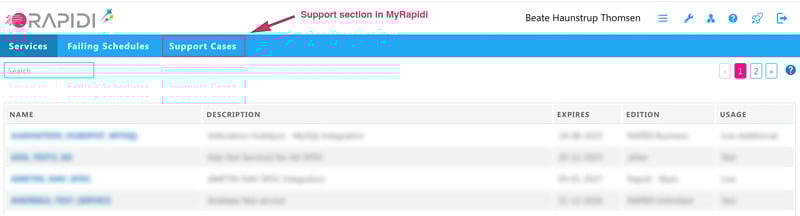
illustration: From the Services page, navigate to Support Cases from the main navigation
Submit a support case
You have for now three options for creating a support case:
1) Click "New Support Case" under this new area for Support Cases. Fill in the subject, pick the service your question is about if it's related to a service, or leave it blank if it's not related to a specific service. Describe your issue as detailed as possible. You can attach screenshots, log files, or exports directly from the form.
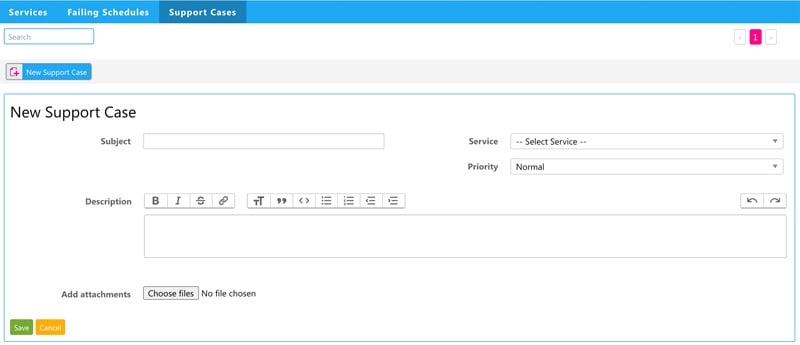
illustration: Under Support Cases click "New Support Case" to submit a new case
2) Click the "Get Support" button in the lower right of the screen, and you will be directed to the support section.
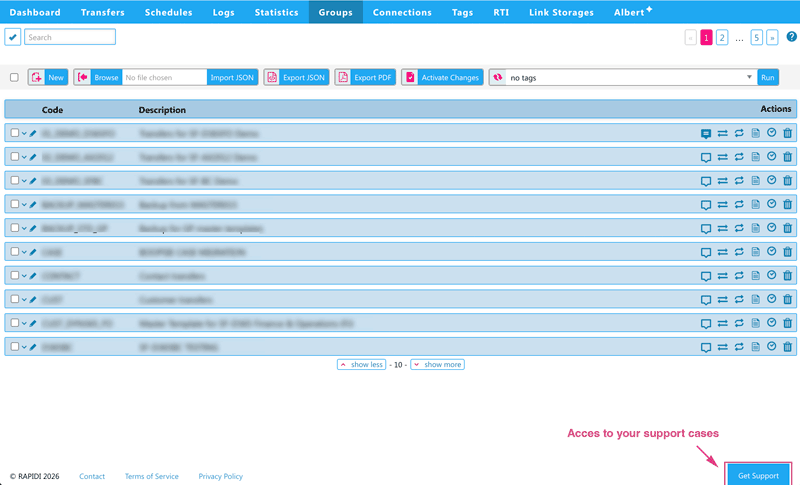
illustration: From any page within the myrapidi.com app you can click the "Get Support" button to go to the support area
3) Send an email to support [at] rapidionline.com
As the last option, you can always send an email to our Rapidi Support Team, and the case will automatically be created under the Support Cases for you to view, reply to, and follow.
See all your open cases in one place
The cases list shows every open request, its current status, who on the RAPIDI team is handling it, and when it was last updated. You can filter by status, priority, and search by keyword.
Follow the conversation
Click any case to open it. You'll see the full message thread - your original message plus every reply from our team — in one place. You can reply directly from the panel without going back to your inbox.
Our AI assistant, Albert, handles the initial response and provides a link to our documentation for common issues and their resolutions. If you cannot resolve it by yourself, our team member will get in contact with you and gladly help you out.
Questions or feedback about this update?
This update is the first release, but we wanted to make it available to you as soon as possible, so you can take advantage of having support case creation within the same system. We will, of course, continue working on the next version with more features. If you have any comments or feedback on how we can make it even better, please email me at bt [at] rapidionline.com and let me know your thoughts - also very happy to jump on a session to discuss further. We are looking forward to your feedback.
Join our Open Office Hours and get all your questions answered
We continue our Open Office Hours session - season 1, where we dive into specific topics. View our schedule and register for the session of your interest. If you missed any sessions, you can also watch our replays of each session.