With Rapidi's integration to Slack you can receive messages from MyRapidi into your Slack Workspace. If your daily work happens a lot inside Slack your can now also receive important updates into different Slack channels instead of receiving them only via email. This helps you receive the information you need if you work and communicated a lot inside Slack.
This update covers what the Rapidi Slack integration is, what it does, how it can be used, what each way does, who can set it up, and how to get started.
Summary:
What? Rapidi now supports sending messages or notifications to your Slack Workspace. If your use Slack daily as your communication tool we can now send notifications from MyRapidi into Slack.
How? It can via a) Albert Chat that posts messages on demand, b) Schedule Monitor that sends notifications about Schedules that have not run through on time or c) an autonomious AI Agent that has been setup up to follow a pre-defined workflow.
Why? It will give you an additional communication channel instead of only via email.
What is the Rapidi Slack Integration
Rapidi's Slack integration allows you to post messages to your Slack workspace to MyRapidi through a one-time, admin-only authorization to send messages and notifications to specific Slack channels.
Once your Slack workspace is connected, Albert can see your available Slack channels and post messages into the one you designate. At the moment, the communication only goes one way, meaning Slack will not post messages back to MyRapidi. But we are working on different possibilities for relevant two way communication.
This Slack integration can be used to notify teams that use Slack in their daily work directly in Slack instead of email only.
Different Ways to Use Rapidi's Slack Integration
It can work in different ways:
- via Albert Chat: this approach is conversational but manual. You ask Albert to post a message in one of your chosen channels (public or private).
- through the Schedule Monitor: this option is automated. You can add your desired Slack channel where notifications should be sent and appear instead of email, or alongside email.
- AI Agent: If you have an AI Agent set up inside MyRapidi that is configured to send messages and notifications into your defined Slack channel(s). This option will be released soon for customers, but the Rapidi support team can help you set this up in the meantime.
| Feature |
How it works |
Who triggers it |
| 1) Post via Albert Chat |
Posts messages to a Slack channel when you ask |
Manual via Albert Chat |
| 2) Notifications via Schedule Monitor |
Sends notifications to a defined Slack channel automatically |
Automatic, on schedule failure |
| 3) AI Agent (to be released soon for customers) |
Sends notifications to the specified Slack channels defined in the Agent's workflow or skill |
Autonomous via a configured AI Agent |
Table: Overview of the diffent ways to work with the Slack integration
1: Post via Albert (AI Agent) in Slack
Albert is MyRapidi's built-in AI agent. You can find it under Your Service > Albert > Chat under any service in MyRapidi. From there, you can ask Albert about Connections, Schedules, Transfers, or errors. With Slack connected, Albert can also deliver your desired message directly into a Slack channel.
For example, you can tell Albert: "Post this message [your message you have been communicating about] to the Slack channel #[nameofchannel]
Albert, the AI agent built into MyRapidi, can post messages into a Slack channel; however, this is a manual process you need to tell Albert to do. To do this in an automated way, you can set up an agent inside MyRapidi to do so.
This is a manual process by default: you tell Albert which channel to post in, and it posts. For teams that want more automation, you can configure an AI agent inside MyRapidi to handle a specific task in a more automated way. More info about the MyRapidi AI Agents will be released soon.
2: Notifications Through The Schedule Monitor
We have also added the functionality to add your Slack channel to the list of destinations for notifications under Schedule Monitor. Schedule Monitor watches your integration schedules and sends a notification when a Schedule has failed to run. Schedule notifications can now go to a Slack channel as well as email.
3: Have your Rapidi AI Agent notify you and your team
You can setup and AI Agent inside MyRapidi that can notify about critical tasks or actions that need to be taken from your side and receive those via email or now also Slack.
For example: An Agent that routes different notifications or tasks to different team members to different channels - for example notify team members from the technical team that this order transfer had an error or did not run through and notify the ERP team, that this email on this specific user is invalid, and they need to fix it.
Note: As this third option will only be available soon to customers, please reach out to your Rapidi Support Team if you want an Agent to be setup for you in the meantime.
How to Set Up The Slack Integration inside MyRapidi (Admin Only)
Connecting Slack is a one-time step. Only an account admin can do it, from the Admin Account menu (wrench icon) in MyRapidi.
- Go to the Admin Account menu (wrench icon) and select the Slack option.
- Select Authorize Slack.
- You'll be redirected to Slack's OAuth permission screen. You're granting two scopes: viewing content and information about channels and conversations, and performing actions in channels and conversations.
- Select Allow. You'll be redirected back to MyRapidi with your workspace and user info confirmed.
After that, MyRapidi appears as a connected app in your Slack workspace, with its own message thread. Albert is ready to post, and Schedule Monitor can be pointed at any channel.
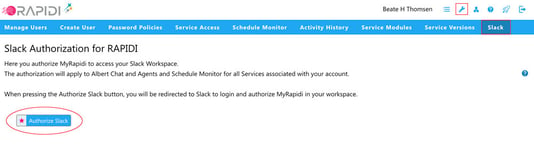
The Account tab in MyRapidi, with Slack selected and the Authorize Slack button ready to click.
You will be redirected to Slack's own OAuth permission screen, where you grant two scopes: viewing content and information about channels and conversations, and performing actions in channels and conversations.
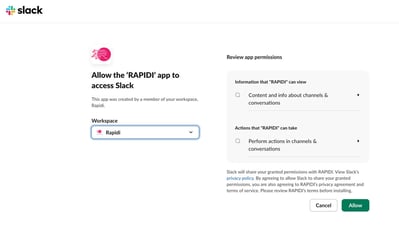
Slack's own OAuth screen. You are granting access through Slack, not typing any credentials into MyRapidi.
Select Allow, and you will be redirected back to MyRapidi with your workspace and user info confirmed.
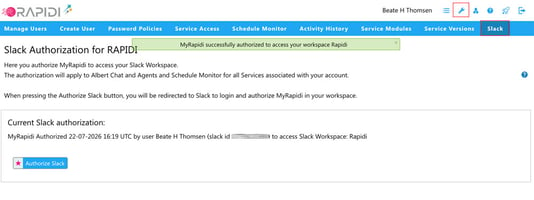
Back in MyRapidi, a confirmation banner shows the connection succeeded.
From that point on, Rapidi is connected to your Slack workspace, and Albert is ready to use it. On the Slack side, MyRapidi shows up as a connected app, ready to message you directly.
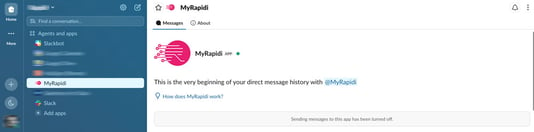
Welcome screen in the MyRapidi App
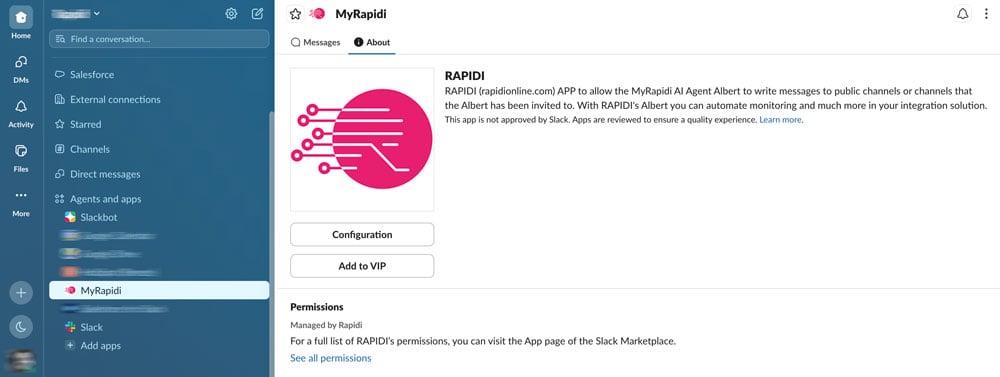
About Tab in the MyRapidi App
The end result: MyRapidi appears as an app in your Slack workspace, with its own message thread.
Full step-by-step details are in the wiki: How to Connect Rapidi to Your Slack Workspace.
How to add a Slack channel to Schedule Monitor (Admin Only)
- Open Schedule Monitor in MyRapidi.
- Add your Slack channel name to the notification destinations.
- Save. Schedule Monitor posts a confirmation message to that channel immediately, so you know it's wired up correctly.
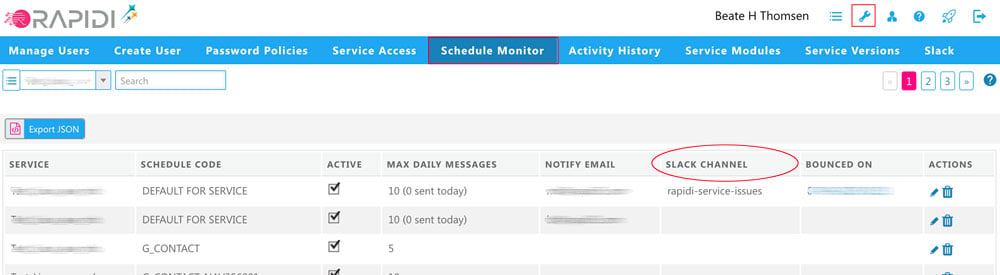
Schedule Monitor, with a Slack channel added alongside email as a notification destination.
No separate Slack setup is needed. Schedule Monitor uses the same workspace you already connected during the one-time authorization. The full walkthrough is in the wiki: Slack Notifications for Schedule Monitor.
A few details worth knowing
A few details worth knowing:
- It uses your account's Slack workspace, the same one you already connected during setup. There is no separate Slack connection to configure for Schedule Monitor.
- When you save a channel in Schedule Monitor, you get a confirmation message posted to that channel, so you know right away it is wired up correctly.
- A single schedule failure counts once against your daily notification limit, even if it goes to both Slack and email.
- Because of that, the setting formerly called "Max Daily Emails" is now called "Max Daily Messages" to reflect that it caps all notifications, not just email.
- Public and private channels both work, as long as Albert has access to them.
Bonus: MyRapidi Slack Integration and the MCP Server
Actually, there is also a fourth option: connect Rapidi MCP Server to your preferred LLM or AI tool, such as claude.ai, ChatGPT, Perplexity, Microsoft Copilot, etc. If you connect MyRapidi to Claude, ChatGPT, or another MCP-compatible AI tool, the Slack messaging capability is available there too, not just inside Albert's own chat window. And you can go a step further to get things more automated to either work on a Rapidi AI Agent or an Agent inside your preferred LLM. We are doing some final testing on Rapidi AI Agents internally and will release this to our customers soon. Stay tuned for info on these capabilities; it will come soon.
What's Next
The Slack integration is live now. If you're a MyRapidi admin, the setup takes a few minutes. Read the full guide on how to get your Slack workspace connected to MyRapidi
If you find this useful or want other integration events routed to Slack (or to a different tool entirely), we want to hear it. Your feedback shapes what Albert does next.
Frequently Asked Questions
Who can set up the Slack connection?
Only an account admin, from the Admin Account menu (wrench icon) in MyRapidi. Regular users can't start or approve the connection themselves.
Can any MyRapidi user post to Slack, or only Albert?
Once an admin connects the workspace, this feature is available to all users directly. As a MyRapidi user, you simply ask Albert to post a message to Slack.
What Slack permissions does Rapidi ask for?
Two scopes: viewing content and information about channels and conversations, and performing actions in channels and conversations. Both are granted during the one-time Slack authorization step.
Can I get schedule-failure notifications in Slack instead of email?
Yes. Schedule Monitor can send notifications to a Slack channel as well as, or instead of, email. When you save a channel, Schedule Monitor posts a confirmation message so you know it's working. A single failure counts once against your daily notification limit, regardless of how many destinations it goes to.
What happened to "Max Daily Emails"?
It's now called "Max Daily Messages." The rename reflects that the limit covers notifications sent to Slack as well as email.
Does Albert work with external AI tools like Claude or ChatGPT?
Yes. Albert's Slack functions (SlackListChannels and SlackMessage) are also part of the Rapidi MCP Server. If you connect MyRapidi to an MCP-compatible AI tool, those Slack capabilities are available there too. For a deeper look at what Albert does, see MyRapidi's AI Assistant Albert: From Launch to Powerhouse.