
DLRS & Rapidi: Accurate Financial Summaries in Salesforce
Many companies struggle to get good insights from their Salesforce data. Standard reports and roll-ups don’t always give you what you need, especially if you don’t want to write code. Declarative Lookup Roll-Up Summaries (DLRS) is a free tool that helps you summarize data in Salesforce, even when objects are connected by lookup relationships instead of master-detail relationships.
What is DLRS?
DLRS (Declarative Lookup Roll-Up Summaries) is a community-built app for Salesforce. It lets you add roll-up summary fields to objects that are connected by lookup relationships. Normally, you’d need to write Apex code to do this. With DLRS, you don’t need to code. You can set up roll-ups using a point-and-click interface.Why Use DLRS Instead of Standard Roll-Up Summary Fields?
Standard roll-up summary fields in Salesforce only work if your objects have a master-detail relationship. They’re also limited to 25 per object and don’t allow much filtering. DLRS removes these limits. You can use it on lookup relationships, create as many roll-ups as you want, and apply filters to include only certain records.
How to Install DLRS
- Go to the DLRS AppExchange page.
- Choose the right version for your Salesforce environment (Production or Sandbox).
- It’s best to install it for Admins Only at first. This lets you test before rolling it out to others.
- After installing, assign permissions using Permission Sets in Salesforce. Make sure admins have full access. Give other users read access if they need it.
- Always test in a sandbox before using DLRS in production. This helps you avoid problems.
How to Set Up a Roll-Up with DLRS
- Open the DLRS app from the App Launcher.
- Click “Manage Lookup Rollup Summaries.”
- Click “New.”
- Choose:
- Parent Object (where the result will show)
- Child Object (where the data comes from)
- Relationship Field (how the objects are connected)
- Aggregate Operation (Sum, Count, Min, Max, etc.)
- Field to Aggregate
- Save the roll-up.
- You can set it to update in real time, on a schedule, or manually.
When to Use DLRS
- You have objects connected by lookup relationships.
- You need to count, sum, or filter records based on more complex rules.
- You need more than 25 roll-up fields on an object.
- You want to avoid writing code.
When to Use Standard Roll-Up Summary Fields
- Your objects use a master-detail relationship.
- You only need basic sums, counts, min, or max.
- You don’t need to filter records beyond what Salesforce allows.
DLRS & Rapidi: Accurate Financial Summaries in Salesforce
Leveraging DLRS with Rapidi: Sync ERP Data in Salesforce and get accurate Financial Summaries from your ERP Data inside Salesforce.
Here at Rapidi we have seen throughout the many years working with organizations needing to integrate their ERP system with Salesforce, that the most common scenario and wish is to be able to provide access to financial and transactional data for business and operations teams from within Salesforce.
Sync your ERP Data into Salesforce
With Rapidi, your ERP data, such as posted sales invoices and credit memos, sales orders and customer ledger entries can be brought into Salesforce through custom objects. Those custom objects have been designed and built by Rapidi making it possible to have all your ERP data instantly available inside Salesforce.
Get accurate Financial Summaries from your ERP Data inside Salesforce using DLRS
While using those custom objects to make your ERP data available in Salesforce, it doesn’t automatically mean that sales or financial metrics are visible at a glance. For example, a sales rep or business user might see dozens of related invoices on an Account — but not a clear summary of total sales, payments received, or current outstanding balance.
In this situation, there are two great options:
- The Rapidi custom objects also contain rollout summary fields that are already part of the unmanaged package - e.g Total invoice amount ( a sum of all invoice lines visible at the invoice header level); Total Sales LCY at the account level where you can see the sum of all payments for a specific time period, etc.
Note: The native rollout summary fields are restricted to master-detail relationships and can perform SUM, MIN, MAX, and COUNT aggregations.
Use the Standard Roll-Up Summary Fields When:
- You have a Master-Detail relationship: Native roll-up summaries only work when the child object is in a Master-Detail relationship with the parent.
- You need basic aggregate functions like:
- COUNT
- SUM
- MIN
- MAX
- The rollup logic is simple and doesn’t require filtering or complex conditions.
- You want real-time updates without extra configuration – native fields update automatically when child records change.
- Declarative Lookup Rollup Summaries (DLRS). They allow you to transform raw synced data into actionable summaries directly on the record — no reports or external dashboards required.
Use DLRS When:
- You have a Lookup relationship: DLRS works with both Master-Detail and Lookup relationships.
- You need advanced logic, such as:
- Conditional rollups (e.g., only count child records where Status = ‘Closed’)
- Cross-object filtering
- Complex filter criteria
- You need more than 25 roll-up summary fields on an object (which is Salesforce’s native limit).
- You need to roll up to custom metadata, junction objects, or objects without direct relationships.
- You want flexible rollup options, like:
- Scheduled rollups (for performance reasons)
- Manual recalculations
- Real-time via triggers
Standard roll-up summary fields are sufficient for master-detail relationships. However, DLRS provides a more flexible solution for lookup relationships or when complex aggregation and filtering are needed.
Example Use Cases for Sales & Business Teams
|
Use Case |
Object Relationship |
Logic Required |
Use Standard Roll-Up? |
Use DLRS? |
Why? |
|
Count total Opportunities for each Account |
Master-Detail |
Simple COUNT |
✅ Yes |
❌ No |
Native roll-up works when Opportunity is in Master-Detail with Account. |
|
Sum Amount of all Invoices for each Customer |
Lookup |
SUM |
❌ No |
✅ Yes |
Lookup relationship — needs DLRS. |
|
Count closed Cases per Account |
Master-Detail |
Filter: Status = 'Closed' |
✅ Yes |
❌ No |
Standard roll-ups support basic filters in Master-Detail. |
|
Count Activities this Quarter linked to Contact |
Lookup |
Date-based filter: This Quarter |
❌ No |
✅ Yes |
Date logic not supported natively. |
|
Sum Payments received for Invoices |
Multiple Objects |
SUM across multiple child objects |
❌ No |
✅ Yes |
Standard fields can't span across unrelated or multiple objects. |
|
Count Credit Memos for a Customer |
Lookup |
Filter: Document Type = 'Credit Memo' |
❌ No |
✅ Yes |
Field filter on lookup — requires DLRS. |
|
Total Quantity sold by Product |
Lookup |
SUM from Order Line Items |
❌ No |
✅ Yes |
Most line items are in Lookup, not Master-Detail. |
|
Count Related Quotes per Opportunity |
Master-Detail |
Simple COUNT |
✅ Yes |
❌ No |
Works if Quote is Master-Detail to Opportunity. |
|
Total Sales per Account for Fiscal Year 2025 |
Lookup |
SUM with Posting Date filter by Fiscal Year |
❌ No |
✅ Yes |
Time-based filter requires DLRS. |
|
Sum of Open Sales Orders |
Lookup |
Filter: Status = 'Open' |
❌ No |
✅ Yes |
Filtered logic on lookup field. |
Functional Example Using DLRS + Rapidi Data
In the screen shot below you see a functional example of using the Declarative Lookup Summaries together with the integrated ERP data via Rapidi.
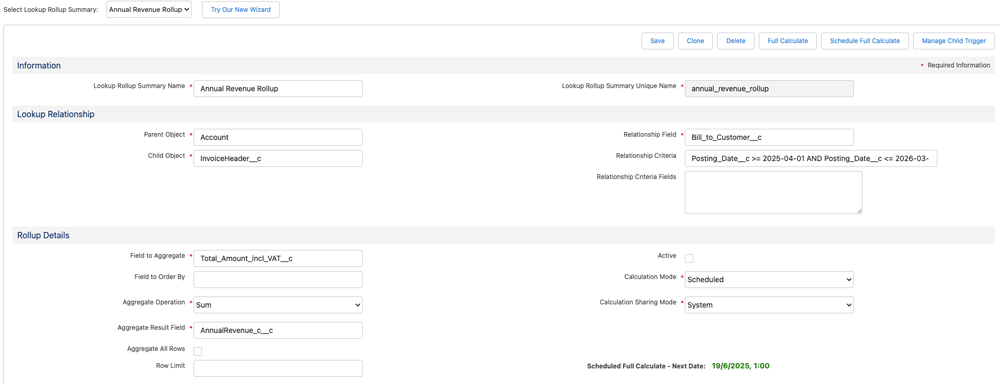
Current Fiscal Year Invoices:
- Object: InvoiceHeader__c
- Field: Total_Amount_incl_VAT__c
- Filter Criteria:
- Document_Type__c = 'Invoice' AND Posting_Date__c >= 2025-04-01 AND Posting_Date__c <= 2026-03-31
- Result Field: AnnualRevenue__c
This DLRS configuration automatically calculates the total invoiced amount from all posted invoices (filtered by document type) within a specific fiscal year. The value is then displayed directly on the Account record under the field AnnualRevenue__c. This means you no longer need to review individual invoice records to know the total value billed — it's available at a glance.
Benefits for Business & Sales Teams
- Unified View: See ERP revenue, payments, and credit activity alongside CRM data
- Operational Efficiency: Reduce dependency on reports or Finance teams
- Better Forecasting: Make data-driven decisions with actual figures
- Informed Conversations: Account Managers go into meetings with full financial context
Watch this quick explainer video by Andreea where she will explain DLRS vs Roll-up Summary Fields, benefits & advantages of using DLRS in Salesforce, especially in combination with your integrated ERP data and how to set them up.
Summary
Overall, we recommend that you start using DLRS (if you are not already using it) which will gives you more options to summarize and display data in Salesforce, especially when you are limited by the standard roll-up summary fields. It’s free, doesn’t require code, and is supported by the Salesforce community.
Then to really get the most out of your data with Rapidi handling the ERP - Salesforce data sync and using DLRS will make your ERP data visible in a more flexible way, your Salesforce becomes the single source of truth — not just for the sales team to have customer insights from each account, but it certainly also gives your the possibility to see your business performance.
Using DLRS in combination with Rapidi’s pre-built custom objects provides business operations teams with a centralized and real-time summary of customer financials directly in Salesforce. By combining Rapidi’s integration capabilities with DLRS’s aggregation features, you gain enhanced visibility without technical complexity.
So, just get it install and start setting up your roll-ups, and you’re good to go.
If you have doubts in how to do this, ask your Salesforce Consultant or get in touch with the Rapidi Support Team and we are happy to help.
Frequently Asked Questions (FAQ)
1. How to install DLRs in Salesforce?
DLRS (Declarative Lookup Rollup Summaries) are installed in Salesforce as an unmanaged package. You simply have to go to AppExchange and search for Declarative Lookup Rollup Summaries (DLRS). Next, you install it and then follow the instructions to install for Admins only. Once installed, go to App Launcher > Declarative Lookup Rollup Summaries to start configuring your rollups.
2. How to do DLRs?
Once installed, create a new rollup using the DLRS app:
- Open the DLRS app from the App Launcher.
- Click "Manage Lookup Rollup Summaries".
- Click "New" and fill in:
- Parent Object (where the data is rolled up to)
- Child Object (where the data is rolled up from)
- Relationship Field (how they are related)
- Aggregate Operation (Sum, Count, Min, Max, etc.)
- Field to Aggregate
- Save the rollup.
- Schedule or deploy a trigger to keep it up to date.
3. What is the limitation of the rollup summary field in Salesforce?
Native Roll-Up Summary Fields have several limitations:
- Only work on Master-Detail relationships.
- Limited to COUNT, SUM, MIN, MAX operations.
- No filtering on cross-object conditions.
- Limited to 25 roll-up summary fields per object.
- Cannot roll up on Lookup relationships – this is where DLRS comes in handy.
4. How to create a rollup summary field in Salesforce?
You can create one in Setup if the objects have a Master-Detail relationship:
- Go to Object Manager > [Parent Object] > Fields & Relationships.
- Click "New Field", choose Roll-Up Summary.
- Choose the Child Object, and pick the rollup type:
- COUNT, SUM, MIN, or MAX.
- Select the target field and any filter criteria.
- Save the field.
For lookup relationships, use DLRS instead.
5. Can I use DLRS fields in reports?
Yes, both Standard Roll-Up Summary Field and Declarative Lookup Rollup Summary (DLRS can be used in Salesforce reports.
6. Do Standard Roll-Up Summary Fields or DLRS have impact on the performance?
Regarding Standard Roll-Up Summary Fields, the impact is very minimal unless mass data changes.
As for the DLRS, it depends on the mode. Real-time mode can affect performance for large data volumes; scheduled mode recommended for bulk.
7. Is DLRS hard to install?
No. Just follow the steps above. Most admins can do it.
8. Does DLRS slow down Salesforce?
It depends on how you set it up. Real-time updates can slow things down if you have lots of records. Scheduled updates are safer for big data sets.
9. Where can I get help?
The DLRS Trailblazer Community and GitHub page have lots of guides and support on the general use of this functionality, however if you need support in setting it up inside Salesforce in combination with your integrated ERP data via Rapidi, please contact the Rapidi Support Team - we are happy to help you!